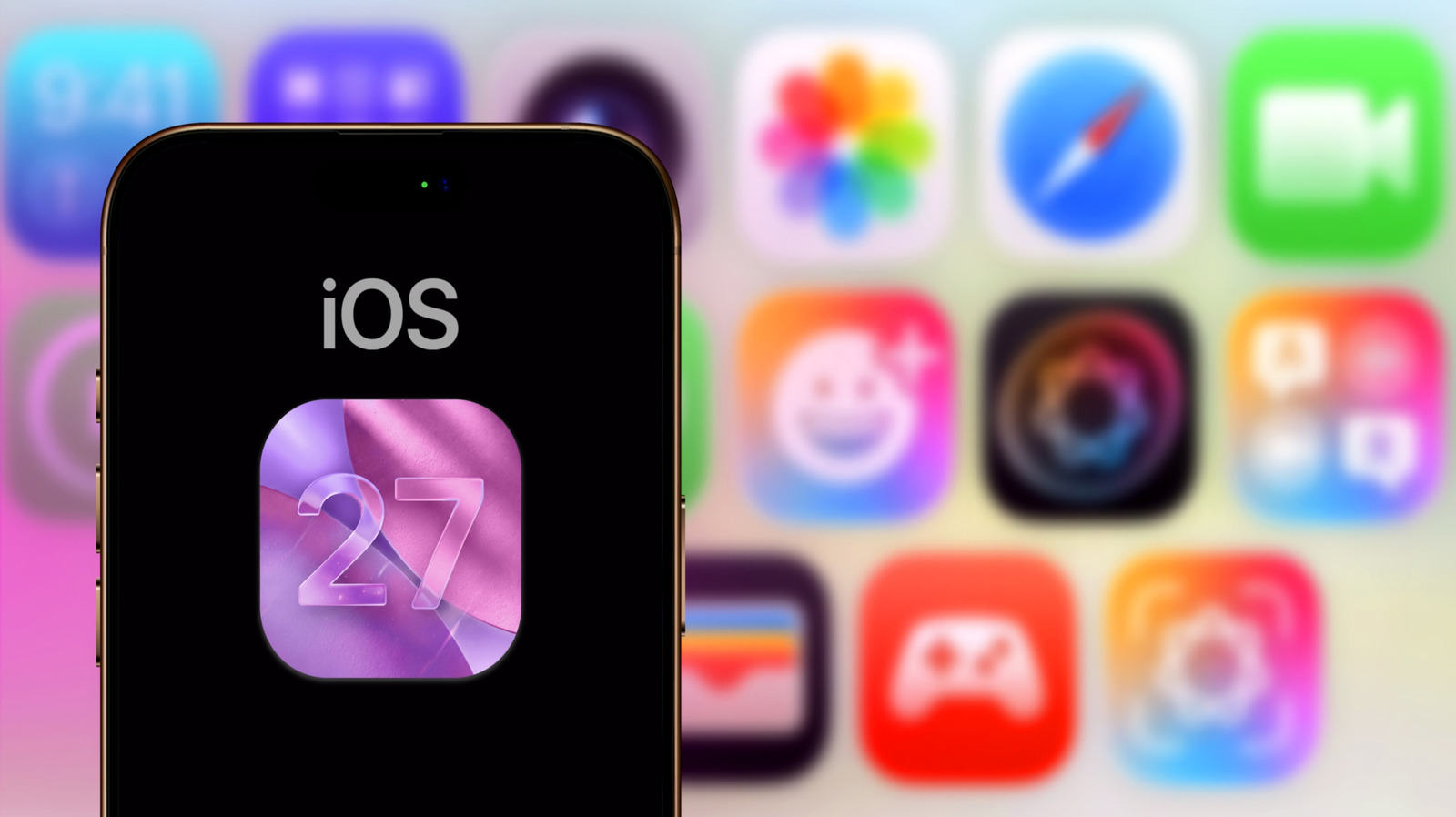
Apple has released iOS 27 and the download starts automatically, but anyone with an iPhone with a full 256 GB or a battery at 18% soon finds the installation stalling halfway. It isn't a problem with the system: it's a problem of preparation. The iOS 27 update itself is trivial — tap a button, wait, restart — but the pre-update phase is where three quarters of the problems that later end up on the Apple forums are either created or avoided. We're talking about backup, free storage, hardware compatibility and post-installation management. Here is how to tackle it without panic.
Backup and storage: the two obstacles that block the iOS 27 update
The question every user asks before touching the button is just one: "If something goes wrong, can I recover my data?" The answer is a full backup, and here Apple offers two parallel routes. The iCloud backup (free up to 5 GB, paid after that) is the most convenient but needs a stable Wi-Fi connection and, on an iPhone with a full 256 GB, can take hours. The backup to a computer via Finder (macOS) or Apple Devices (Windows) is faster and doesn't use up cloud quota. In my opinion, for a jump between major versions like iOS 27, the safety of a local backup on a computer beats any convenience: I once lost an afternoon's worth of photos and I wouldn't do it again.
The second obstacle is free space. iOS 27 takes up a portion of storage for the new system image, and if the device is full the installation fails with a generic error. The procedure is simple but tedious: go to Settings > General > iPhone Storage and delete the apps you haven't opened in three months, empty the "Downloads" folder in Messages, delete videos you've already watched via streaming. A trick I've used for years: turn off the third-party apps that cache aggressively (streaming clients, social networks with endless feeds) and recalculate the space. You need at least a safety margin equal to the size of the update file, which Apple doesn't declare in advance but which has historically ranged between 5 and 8 GB for a major update.
If you have doubts about the iCloud backup, Apple's official guide in Italian is clear and up to date: this page explains step by step how to force an immediate backup and check that it has completed before starting the update.
Action list: 7 steps before installing iOS 27
You don't need a technician. You need a checklist. Here is the sequence I recommend to every SpazioiTech reader, in order of priority:
1. Charge the battery above 50%. Installing iOS 27 needs a continuous supply of power; an iPhone left on standby at half charge can interrupt the process and leave the device in a restart loop. Plug it into the charger and let it go past the threshold. For an iPhone with an already degraded battery (over 500 cycles, efficiency below 80%), a 20 W or higher charger makes the difference in timing.
2. Run a full backup. iCloud or computer, your choice. Check that the date and time of the backup are current, not from three weeks ago. In Settings > your name > iCloud > iCloud Backup, check the "Last successful backup" entry.
3. Free up storage. As mentioned: useless apps, cache, videos. The aim is to have a safety margin. On a 128 GB iPhone, with iOS 27 installed, the useful margin shrinks quickly: keep an eye on the bar in Settings > General > iPhone Storage.
4. Turn Wi-Fi off and on again. It sounds trivial, but an unstable connection is the number one cause of corrupted downloads. Resetting the network card (or simply restarting) clears the micro-glitches in DNS that prevent the 6-8 GB file from downloading.
5. Check your model's compatibility. Not every iPhone gets iOS 27. Apple publishes the list of supported devices on its official website: here you'll find the summary. If your iPhone isn't on the list, the update won't appear in Settings > General > Software Update, and don't force it via a computer: you risk bricking it.
6. Turn off "Restrictions" and "Screen Time" if active. In some cases, a management profile (MDM) or a time limit set on an app can block the installation. In Settings > Restrictions, make sure there are no blocks on "Updates". If your children have iPhones, now is the time to coordinate before updating.
7. Note down passwords and access codes. iOS 27 may require two-factor authentication to be set up again on third-party apps. Keep your Apple ID credentials, banking apps and the cloud services you use close at hand. A paper notebook beats any password manager at this specific moment.
After installation, the first start-up takes longer than usual: iOS 27 rebuilds the Spotlight index, reorganises app permissions and syncs data. Leave the device on and plugged in for at least 30 minutes. Don't touch the power button. I know, it's boring, but it's the only way to stop the optimisation being interrupted and leaving you with a sluggish interface for the first few hours.
Compatibility and post-update: what to check after iOS 27
Once the iPhone is on iOS 27, the question changes: "Is everything working as before?" The short answer is: almost always yes, but with two recurring exceptions. The first concerns third-party apps: some, especially niche ones or those from less responsive Italian banks, may need an update to their own client to be compatible with the new iOS 27 APIs. Check the App Store in the first 24 hours. The second exception is the battery: for the first two days after a major update, iOS runs re-indexing and data migration in the background, and energy consumption is higher than normal. It isn't a defect, it's temporary. If after 48 hours battery life doesn't return to its previous levels, that's the point at which it makes sense to open a ticket with Apple Support or take the device to an Apple Store or authorised service centre.
For anyone in Italy using an iPhone with a physical SIM and an eSIM (such as recent iPhones), one thing to do straight after the update is to check that the eSIM configuration is still active: Settings > Cellular > Plan Details. In very rare cases, a system update can reset eSIM profiles, and without the mobile network the phone becomes an expensive tablet. A call to your carrier (TIM, Vodafone, WindTre, Iliad) fixes it in five minutes.
In practice, for the Italian user who opens Settings today and sees the "iOS 27 available" entry, the message is this: don't do it haphazardly. Fifteen minutes for a backup, ten minutes to free up space, a night to charge. Tomorrow the iPhone is updated, stable, and you don't wake up to a phone that won't turn on. Technology isn't difficult: it just needs to be treated with the respect it deserves, like a car before a long journey. The rest is habit.
Frequently asked questions
How long does it take to update to iOS 27?
It depends on your connection and free space. Downloading the update file generally takes 20-40 minutes on a stable Wi-Fi network, with installation and the first restart adding another 15-30 minutes. In total, plan for an hour without using the phone. On a 5G mobile network, download times are shorter, but Apple advises against updating over mobile data to avoid unexpected charges.
Will I lose my data with the iOS 27 update?
No, an over-the-air (OTA) update via Settings > General > Software Update doesn't erase data. Photos, messages, apps and settings stay intact. The risk only arises if you restore from a backup onto a wiped iPhone, and even then, with a recent backup, recovery is complete. For safety, a pre-update backup remains good practice.
Is my iPhone compatible with iOS 27?
Apple publishes the list of supported devices on its official website. In general, iPhones from the last four to five generations get the update; older models stay on earlier versions. Check your model (Settings > General > About) and compare it with the list on apple.com/ios. If your device isn't on the list, the update won't be offered, and don't force it.
Via: Engadget
Translated from the Italian original. Read in Italian